
Several months ago I have been setting up a few scripts so that I can automate the creation / adjustment of new / existing solutions for customers and also make it easy for other developers/front-enders to start working on new projects.
Powershell has been invaluable in setting up these processes and I’ve been amazed on a daily basis just how powerful the language can be. Your everyday mundane tasks such as renaming a group of files, finding and replacing text or even attaching databases can become automated.
Also, I want mention that developer from time to time should do disposable actions to adjust solution and fix some wrong behavior. With the help of Powershell there is no need to prepare some workaround of how to deliver such fixes. You just write Powershell code, test it and then run on LIVE.
That’s why I’m also a big fan of Adam Najmanowicz’s Sitecore Powershell Extensions!
Adam has taken the concepts and syntax of Powershell and made “the power” available within Sitecore. I wont bore you with the full details as there are lots of resources on this already, namely here, but I’ll share how to get started and some of the ways I used Powershell extensions which you might find useful.
You can download the Powershell extensions from the Sitecore place
http://marketplace.sitecore.net/en/Modules/Sitecore_PowerShell_console.aspx
Overview
Once installed, head over to the Powershell ISE under Sitecore desktop – Start -> Development tools.
To run a script, you need to place your Powershell code in the console window, select a context item of where you want to run the command (Remember here, if your script has recursion it can take a long time to execute depending on which node you choose) and press execute.
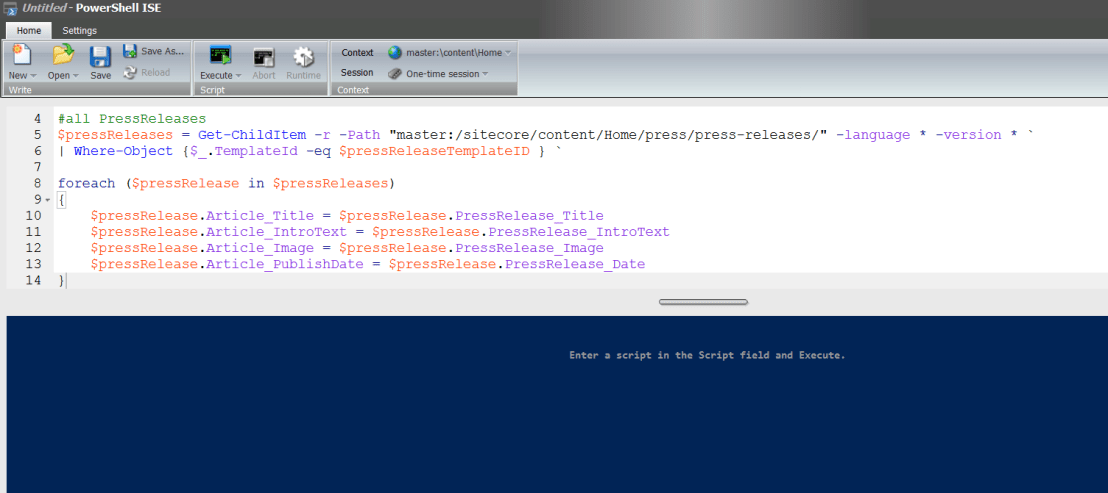
In this example, whilst working on the project, I decided to copy data from one fields into another within the template.
$pressReleaseTemplateID = "{E482A945-CF10-4249-8AF5-CF29C620DC95}"

#all PressReleases
$pressReleases = Get-ChildItem -r -Path "master:/sitecore/content/Home/press/press-releases/" -language * -version * `
| Where-Object {$_.TemplateId -eq $pressReleaseTemplateID } `

foreach ($pressRelease in $pressReleases)
{
    $pressRelease.Article_Title = $pressRelease.PressRelease_Title
    $pressRelease.Article_IntroText = $pressRelease.PressRelease_IntroText
    $pressRelease.Article_Image = $pressRelease.PressRelease_Image
    $pressRelease.Article_PublishDate = $pressRelease.PressRelease_Date
}
More user friendly
You can run any Sitecore Powershell script from the context menu in the Sitecore tree.
Which makes these pieces of functionality available to content authors.
Samples
Below you can find some samples of the usage of Powershell script.
- Change template for the group of items
<# .DESCRIPTION This script automatically change template from "OldTemplate" to "NewTemplate" for all items in directory: "/sitecore/home/Items/" #> cd master: function UpdateTemplateInItems { param( [Parameter(Mandatory=$True)] [string] $ItemsPath ) $templateFrom = Get-Item "master:/sitecore/templates/Components/ItemTemplate_Old $templateTo = Get-Item "master:/sitecore/templates/Components/Items_Template"; Get-ChildItem $ItemsPath -Recurse ` | where-object { $_.TemplateName -eq $templateFrom.Name } ` | foreach-object { $_.ChangeTemplate($templateTo);} } $sw = [Diagnostics.Stopwatch]::StartNew() "Script to change template for items has been started" # DB name was specified due to the issue of occasionally change of context # during the script execution. $ItemsPath = "master:/sitecore/home/Items/"; if(Test-Path $ItemsPath){ UpdateTemplateInItems -ItemsPath (Get-Item $ItemsPath).FullPath } $sw.Stop() "Script to change template for items has been Ended. Time elapsed: $($sw.Elapsed)" -
Change workflow state for the items <# .DESCRIPTION This script updates wrong workflow state of items. Wrong state avoids users and import to update items. #> $message = "WorkflowStateUpdateScript:" Write-Host "$(Get-Date) Start." $myObj = (New-object object) [Sitecore.Diagnostics.Log]::Info("$message Start.", $myObj) $correctState = "{D1E31BDC-089E-4F3F-9B1C-0010A4CEEE2C}" $stateCondition = "@__Workflow state='{7224E8CB-15CB-42C8-9A66-09CA2CFFA994}' or @__Workflow state='{7224e8cb-15cb-42c8-9a66-09ca2cffa994}'" #get items: $wrongItems = Get-Item master: -Query "fast:/sitecore/Items//*[$stateCondition]" -Language * Write-Host "Number of items with wrong state: $($wrongItems.count)" [Sitecore.Diagnostics.Log]::Info("$message Number of items with wrong state: $($wrongItems.count)", $myObj) if ($wrongItems.count -gt 0){ #update items: Write-Host "$(Get-Date) - Starting update..." "{0,-100} {1, -20} {2,10} {3,10}" -f "ItemPath", "TemplateName", "Language", "Version" $updated = 0 foreach ($myItem in $wrongItems) { $myItem."__Workflow state" = $correctState $updated += 1 } Write-Host "Number of updated items: $updated" [Sitecore.Diagnostics.Log]::Info("$message Number of updated items: $updated", $myObj) } Write-Host "$(Get-Date) - End." [Sitecore.Diagnostics.Log]::Info("$message End.", $myObj) -
Clear unnecessary stuff.
There is very important trick to increase performance - disable events and
do bulk update

<#
.DESCRIPTION
Deletes all language versions from product items (except en language version).
#>

#language to keep...
$preservedLanguages = "en"
$stopwatch = new-object -type 'System.Diagnostics.Stopwatch'
$stopwatch.Start()

#for performance - stop indexing, adding to history engine, ... after each change
$bulkupdate = new-object -type "Sitecore.Data.BulkUpdateContext"

#disable events...
$eventDisabler = New-Object Sitecore.Data.Events.EventDisabler

#get all items of specified template (/sitecore/templates/Components/ProductItem)
# - get items in current language (not important which one)
# - take only items with template
# - remove all language versions except preserved languages

get-childitem "master:/sitecore/Products" -recurse `
    | Where TemplateID -eq "{7D402613-C991-4996-AF93-879A149BDF9E}" `
    | Remove-itemLanguage -Language * -ExcludeLanguage $preservedLanguages

#dispose..
if($eventDisabler -ne $null)
{
    $eventDisabler.Dispose();
}

if($bulkupdate -ne $null)
{
    $bulkupdate.Dispose();
}

#clear caches - due to disabling events above
[Sitecore.Caching.CacheManager]::ClearAllCaches()

$stopwatch.Stop()
write-host $stopwatch.Elapsed
Useful materials
- http://blog.najmanowicz.com/2011/11/18/sample-scripts-for-sitecore-powershell-console/
- https://www.gitbook.com/book/sitecorepowershell/sitecore-powershell-extensions/details
As you can see, this is some pretty powerful stuff. So just remember the great power, great responsibility principal and backup before performing any update or delete operations!
 Andrey Vinda
One thought on “Sitecore and Powershell: Jack of all trades”